

If you find yourself doing the same Excel tasks over and over, you're wasting time. Automation can take many of those chores off your plate.
Importing data from the same source, cleaning it the same way, formatting reports identically, or sending files to the same people are all tasks that can be automated. Once those tasks are automated, Excel becomes less of a chore and more of a dependable system that runs in the background.
This guide walks through five practical ways to automate your Microsoft Excel spreadsheets. Some are Excel add-ins or are built directly into Excel. Others connect it to modern workflows or turn spreadsheets into automated mobile apps. Each approach solves a different kind of problem, and many teams end up using more than one.
Summary:
For data that needs regular cleaning and combining: Power Query
For repetitive desktop Excel tasks (formatting, file manipulation, complex processing): VBA Macros
For cloud-based teams needing shared automation: Office Scripts
For connecting Excel to other business systems (if you're technical): Power Automate
For making mobile apps that let you schedule automations, trigger automated workflows, and do AI-powered Excel updates: Glide
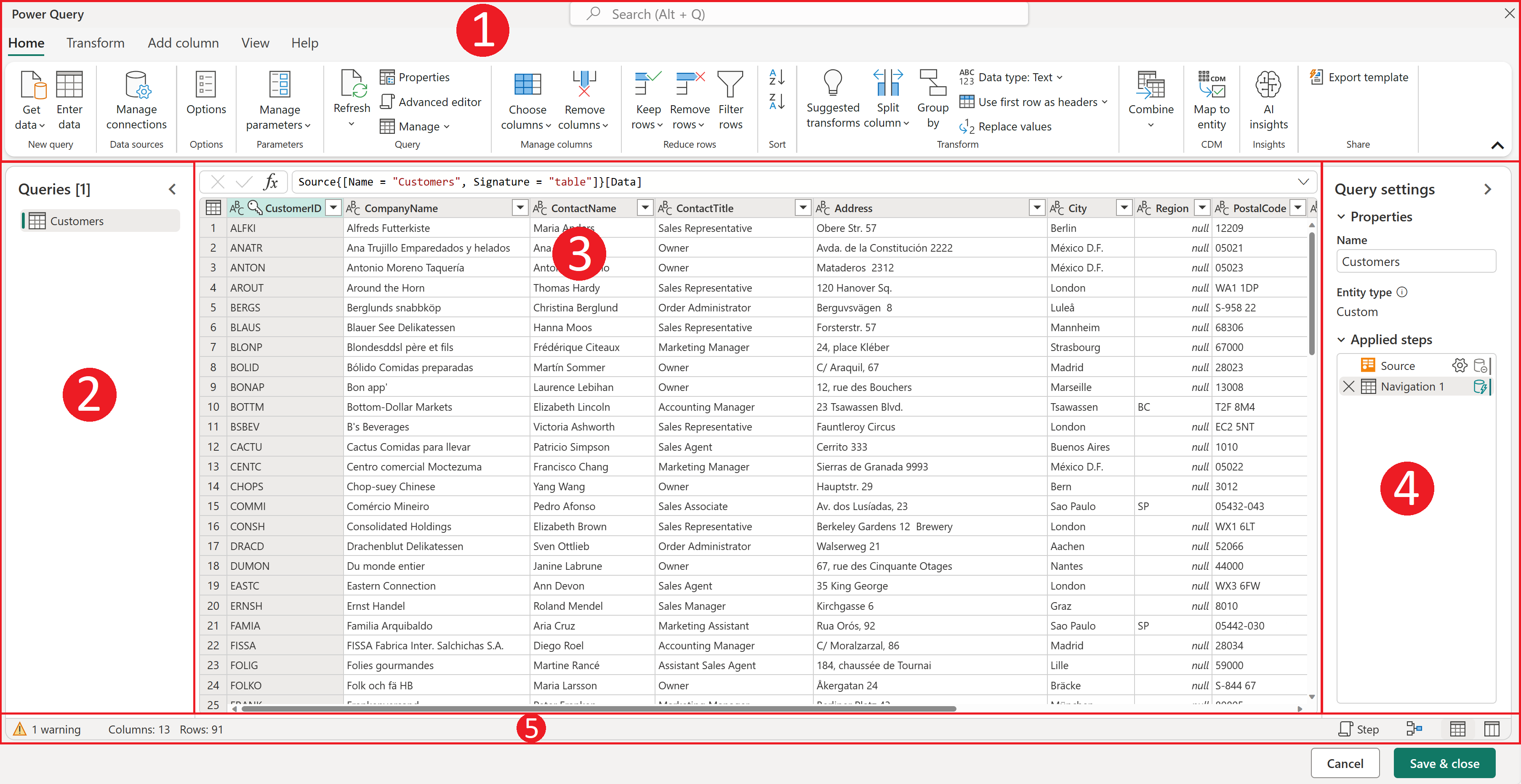
Power Query: Automate data imports, cleanup, and transformation
Power Query is one of the most useful tools in Excel for anyone who works with incoming data. It is designed to handle the repetitive steps that happen before data analysis even begins, such as removing columns, fixing formats, filtering rows, and combining files.
With Power Query, you define the cleanup process once, and Excel records each step you take. When new data arrives, you refresh the query, and Excel automatically repeats the same steps.
This is especially useful when data comes from the same source every time. Monthly exports, weekly logs, or vendor CSV files often arrive with the same quirks and inconsistencies. Power Query eliminates the need to fix those issues manually each time.
Power Query focuses entirely on data transformation. It does not send emails, click buttons, or create workflows outside Excel. For that reason, it works best as a foundation for clean, reliable data rather than as full automation across systems.
Power Query at a glance:
How it works:
A built-in Excel tool for importing, cleaning, and reshaping data from external sources. It records your transformation steps and lets you refresh the query to automatically apply the same steps to new data.
When to use it:
You regularly receive data files that need the same cleanup (removing columns, filtering rows, changing formats)
You combine multiple files from the same source (monthly sales reports, weekly exports, daily logs)
You import data from databases, web pages, or other systems
You're tired of rebuilding formulas like VLOOKUP every time your data updates
Limitations:
Power Query handles data transformation beautifully, but it can't interact with Excel's interface, create new files, send emails, or automate tasks outside of data manipulation.
How you might use Power Query in real life:
Your vendor sends a monthly CSV file. It has a ton of messy data; extra columns you don't need, blank rows scattered throughout, and inconsistent formatting. Instead of manually fixing this each month:
Go to Data tab → Get Data → From Text/CSV
Select your file
In the Power Query Editor, clean your data: remove columns, delete blank rows, change data types, sort
Click "Close & Load" to bring the clean data into Excel
Next month: just update the file path in the query and click "Refresh," and all the cleanup happens automatically
VBA Macros: Automate repetitive actions inside Excel
VBA (Visual Basic for Applications), is Excel’s original automation language. It allows you to record actions or write instructions that Excel can repeat later.
Macros are especially helpful when the same formatting or file actions happen again and again. Formatting reports, resizing columns, creating charts, saving files, or exporting PDFs are all tasks that VBA handles well.
One of the simplest ways to start is by recording a macro. Excel watches what you do and converts those actions into reusable instructions. The next time you need the same result, you run the macro, and Excel performs the steps instantly.
VBA can also do things other tools cannot. It can interact with Excel’s interface, manage files, send emails, and even build custom forms. That flexibility makes it powerful, but it also introduces limitations. Macros only work in desktop Excel, they can be blocked by security settings, and they are not ideal for shared or cloud-based workbooks.
Begin with the macro recorder to automate simple tasks. As you get comfortable, learn basic VBA to customize recorded macros. The internet has extensive VBA resources and code examples you can adapt.
VBA Macros at a glance:
How it works:
Visual Basic for Applications is Excel's built-in programming language that lets you record actions or write code to automate tasks within desktop Excel. You can record your actions as a macro, then replay them with one click. For more complex automation, you write VBA code that tells Excel exactly what to do.
What it can do that other tools can't:
Interact with Excel's interface (ribbon, dialog boxes, etc.)
Create and manipulate files (open, close, save, delete)
Send emails directly from Excel
Build custom user forms and interfaces
Integrate with other Office applications
When to use it:
You perform the same formatting steps repeatedly (applying specific fonts, colors, borders)
You need to manipulate multiple sheets or workbooks simultaneously
You want custom functions that don't exist in standard Excel
You're working exclusively in desktop Excel (not cloud/web)
Limitations:
Works only in desktop Excel (not Excel Online)
Macros don't work well in co-authoring scenarios
Security settings sometimes block macros
Requires more technical skill for complex tasks
How you might use VBA Macros in real life:
Every week, you create a sales report that requires specific formatting, like bold headers, colored cells, borders, or specific column widths. Instead of doing this manually:
Go to View tab → Macros → Record Macro
Perform your formatting steps
Stop recording
Assign the macro to a button or keyboard shortcut
Next time: click the button, and all formatting applies instantly
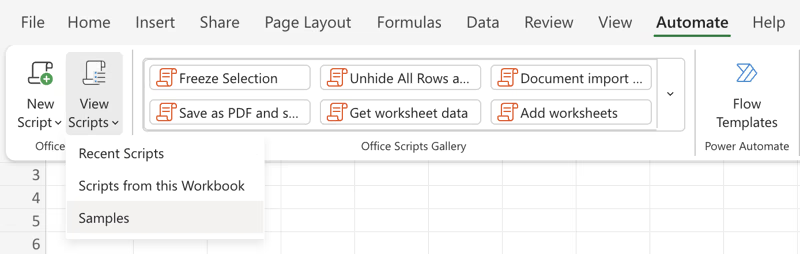
Office Scripts: Automation for Excel in the cloud
Office Scripts are Microsoft’s modern alternative to VBA for Excel on the web. Instead of Visual Basic, they use JavaScript and work within Excel Online and Microsoft 365.
The concept is similar to macros. You record actions, save the script, and run it again later. The difference is that Office Scripts are cloud-based, easier to share, and designed to work across devices.
This makes them a better fit for teams collaborating in shared Excel files. A script can clean up formatting, calculate totals, or apply rules every time the file is updated. With Power Automate, these scripts can even run on a schedule or when specific changes occur.
Office Scripts are still evolving and do not cover everything VBA can do. More advanced customization requires JavaScript knowledge. Even so, they provide a practical path for teams that live in Excel Online and want automation without relying on desktop-only tools.
If you know VBA, the transition is straightforward. Concepts are similar, just different syntax. If you're new to both, start by recording simple tasks and gradually learn to edit the generated code.
Office Scripts at a glance:
How it works:
The modern, cloud-based successor to VBA, using JavaScript instead of Visual Basic. It works in Excel for the web and integrates with Power Automate for workflow automation. Similar to VBA, you can record actions in Excel Online, which creates a JavaScript-based script. You can then edit these scripts, share them with colleagues, or trigger them automatically through Power Automate.
Advantages over VBA:
Works on any platform (Windows, Mac, web, mobile)
Scripts can be shared easily with no macro security warnings
Integrates with Power Automate for advanced automation
Cloud-based, so scripts run even when Excel isn't open
When to use it:
Your team works primarily in Excel Online (web or cloud)
You need automation that works across devices and platforms
You want to share automated processes with remote team members
You're integrating Excel with other cloud services
Limitations:
Only works in Excel for the web and Excel on Windows with a Microsoft 365 subscription
Smaller feature set than VBA (still evolving)
Requires JavaScript knowledge for complex customization
How you might use Office Scripts in real life:
Your team collaborates on an Excel file in OneDrive. You need to standardize data formatting every time someone adds new rows. With Office Scripts:
In Excel Online, go to Automate tab → New Script → Record Actions
Perform your formatting tasks
Stop recording
The script saves and can be run by anyone with access
Optionally: trigger the script automatically when the file updates (via Power Automate)

Power Automate: Connect Excel to other systems
Power Automate moves Excel beyond the spreadsheet itself. Instead of automating actions inside Excel, it focuses on what happens before and after Excel is involved.
A Power Automate flow reacts to events. A form submission, a file upload, a scheduled time, or a data change can all trigger actions automatically. Those actions might include updating Excel, sending notifications, creating tasks, or syncing data with other systems.
This is useful when Excel is part of a larger process. For example, when a sales order is submitted, Power Automate can add a row to Excel, notify the warehouse in Teams, and create an invoice in another system. No one needs to move data manually.
Common automations for Power Automate might include:
Email Excel file automatically each week
Save email attachments to OneDrive and import data into Excel
Create approval workflows for Excel-based forms
Sync Excel data with databases, CRMs, or project management tools
Generate notifications when Excel data meets specific conditions
Power Automate works best for teams already invested in Microsoft 365. It does require cloud storage such as OneDrive or SharePoint, and more advanced integrations often require paid connectors. Complex workflows can also become difficult to maintain without technical oversight.
Power Automate at a glance:
How it works:
Microsoft's workflow automation platform that connects Excel to other applications like SharePoint, Teams, Outlook, and hundreds of third-party services. Power Automate creates automated workflows (called "Flows") triggered by specific events. When something happens (file uploaded, form submitted, schedule reached), it performs actions you define.
What makes it powerful:
Connects to 500+ services (Salesforce, SharePoint, Dropbox, Gmail, Slack, etc.)
Works with Excel data in OneDrive, SharePoint, or even email attachments
Can run Office Scripts as part of workflows
Scheduled triggers (run every day at 9am, every Monday, etc.
When to use it:
Excel is part of a larger workflow (data comes from one system, goes to another)
You need to trigger actions based on Excel events (file updated, row added)
You want to automate file movement, notifications, or approvals
You're connecting Excel data to non-Microsoft services
Limitations:
Requires files in OneDrive, SharePoint, or other cloud locations
Premium connectors (like SQL, Salesforce) cost extra
Complex logic can be difficult to build without technical knowledge
Runs in the cloud, so can't interact with desktop applications directly
How you might use Power Automate in real life:
Your sales team submits orders via a form. You want the data to go into Excel, notify the warehouse, and update your accounting system:
Create a Flow: "When a new form response is submitted..."
Action 1: Add a row to Excel table in OneDrive
Action 2: Send Teams notification to warehouse
Action 3: Create invoice in QuickBooks
The entire process runs automatically, with no manual steps required
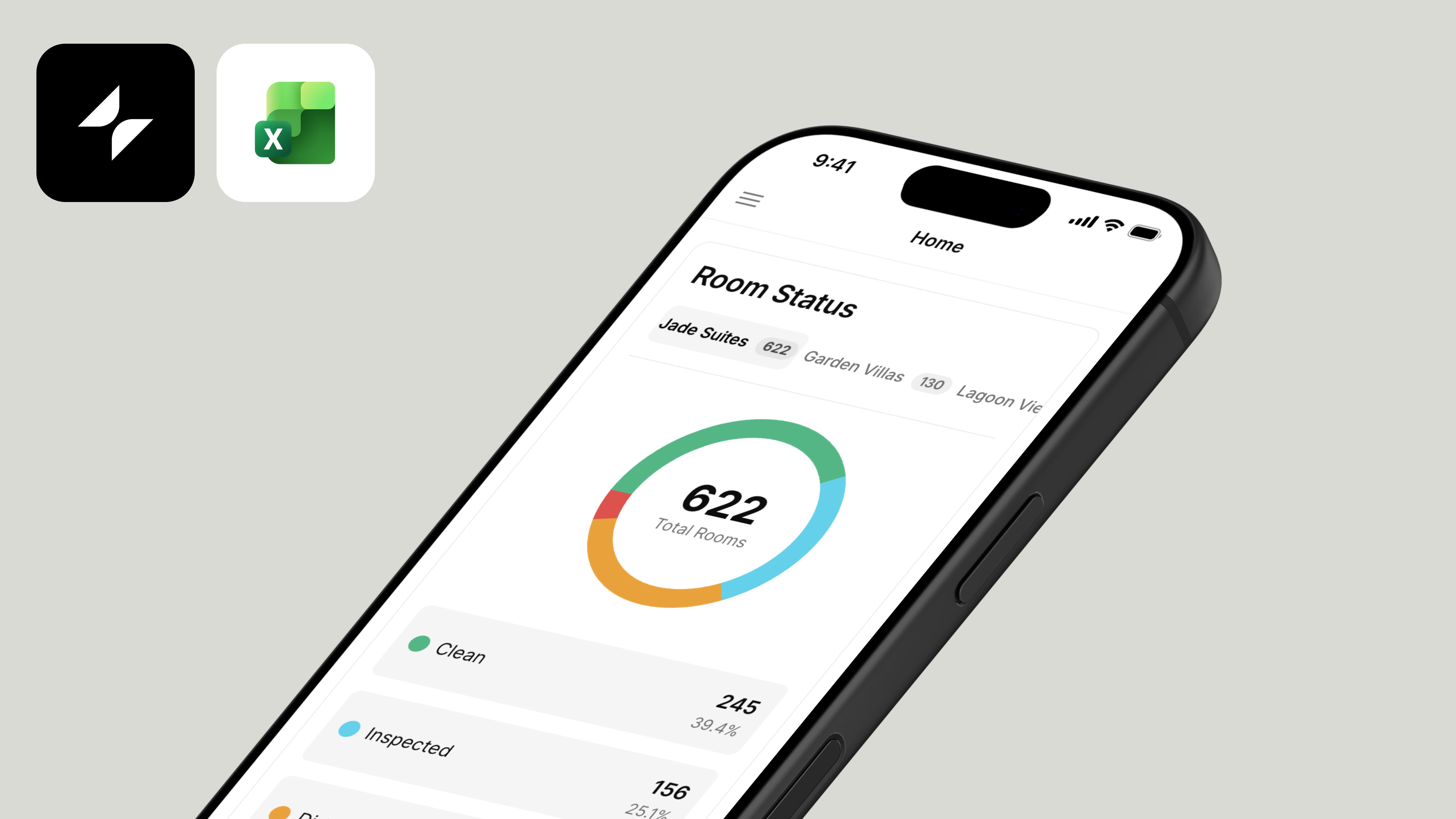
Glide: Turn Excel sheets into apps with automated workflows
Glide takes a different approach to Excel automation. Instead of focusing only on the spreadsheet, it treats Excel as a data source and builds a usable application on top of it. That app can use AI and workflows to automate your Excel data in powerful ways.
When you connect an Excel file to Glide, you can transform it into a mobile app without needing to hire engineers or have any coding experience. Forms replace raw spreadsheet editing. Permissions control who sees what. Workflows run in the background without anyone opening Excel.
This is especially useful when Excel data needs to be accessed outside the office. Field teams, contractors, and remote staff can update information from phones or tablets. Changes sync back to Excel automatically. Since you’re creating a true app interface, you also gain the ability to share and collect information while preserving the security and privacy of your data, which would be impossible with a straightforward Excel sheet.
Glide includes a built-in workflow engine that automates tasks without user interaction. These workflows can run on schedules, respond to emails, process data from external systems, or react to actions taken inside the app.
A real example is expense tracking. Instead of employees manually entering receipt data into Excel, they can take a photo with their Excel-based web app. Glide’s AI extracts the details, categorizes the expense, applies approval rules, and updates Excel automatically. The spreadsheet stays accurate, and the manual work disappears.
This type of automation is difficult to build with traditional Excel tools alone. Glide combines app interfaces, automation logic, and AI extraction in one place, giving you expanded capabilities beyond just the spreadsheet.
Common use cases for using Glide to create Excel apps include:
Field data collection replacing clipboards and paper forms
Expense tracking with AI receipt scanning
Customer portals where clients check order status without seeing the entire spreadsheet
Inventory management with barcode scanning and real-time updates
Approval workflows for purchase requests, time-off, or expenses
Employee directories searchable from mobile devices
Equipment checkout systems tracking who borrowed what
Job costing apps for construction crews at work sites
type: embedded-entry-inline id: 3P3V7YcyUk8jt7fPGDWNRb
Glide at a glance:
How it works:
Glide is a no-code platform that transforms Excel spreadsheets into fully functional web and mobile applications with powerful automation capabilities, no programming required. Connect your Excel file (via OneDrive or upload as CSV), customize the interface with drag-and-drop components, add features like forms and workflows, then publish for your team or customers to use. Glide is different than other Excel automation tools in a few key ways:
No coding required: Unlike VBA or Office Scripts, Glide Workflows use a visual builder that anyone can understand
AI-native: Built-in AI for extracting data from emails, images, and unstructured content
Mobile-first: The apps you build work seamlessly on phones and tablets, not just desktop computers
Unified platform: App building, workflows, and data management all in one place
More intuitive than Power Automate: Visual workflow builder designed for business users, not IT professionals
When to use it:
People need to access or update Excel data from phones or tablets
You want to give selective access to data (vendors see only their data, customers see only their orders)
You need forms for data entry instead of raw spreadsheet access
You want approval workflows, GPS tracking, photo uploads, barcode scanning, or features Excel doesn't have
Field teams need to update data from job sites, not just offices
You need automated workflows triggered by schedules, external events, or emails (Glide Workflows)
You want to process incoming emails and automatically update Excel (AI-powered data extraction)
You need to connect Excel to external systems (Shopify, Stripe, PandaDoc, etc.) via webhooks
You want sophisticated automation with loops, conditions, and computed steps (without coding)
You're looking for a more intuitive alternative to Power Automate, specifically for Excel and mobile apps
Limitations:
Won’t automate work directly in Excel, work lives in a dedicated app and syncs back to your sheet.
Advanced Excel features (complex macros, pivot tables) don't translate to apps
Best for operational workflows, not data-intensive tasks like financial modeling or analysis
How you might use Glide in real life:
You need to update your accounts payable sheet when you receive an invoice in your email inbox. You’ll create an invoice tracking app that is updated automatically with an easy-to-check dashboard view for finance.
Connect your Excel sheet to Glide and design a basic interface
Set up a dedicated Gmail inbox
Use Glide’s native integration to connect your app to your Gmail inbox
Create an automation between Glide and Gmail that automatically extracts information from new emails
Add Glide AI to that workflow to extract vendor, amount, and due date
Glide will automatically categorize and update the extracted data in Glide’s data layer and push that update to your Excel sheet
Set a notification for accounts payable to alert them that they have a new outstanding invoice
Finance, sales, leadership, and any other teams that need visibility can check your app to confirm invoicing and payments status or check historical data
type: embedded-entry-inline id: 3eMPIwAFxYrkSWw4y055zc
Work more efficiently with your spreadsheets
No single tool solves every Excel problem. Power Query is ideal for cleaning and combining data. VBA handles repetitive desktop tasks. Office Scripts work well for shared cloud files. Power Automate connects Excel to larger workflows. Glide turns Excel into something closer to a real application that you can create powerful automations within.
Many teams use a combination. Power Query might clean incoming data. Glide workflows might process emails and approvals. Glide apps might provide mobile access for field teams. All of it can still connect back to the same Excel files.
The goal of Excel automation is to remove the most repetitive, error-prone work first. Start with one task that consistently wastes time. Automate that. Then move on to the next.
Excel works best when it supports your work reliably in the background instead of demanding constant attention. Automation is how you get there.


